KasaDESK staff phone app
The KasaDESK staff app is a phone version of the staff inbox. Your agents use it to read and answer the conversations they are already authorized for in the web console. It uses the same staff accounts, workgroups, assignments, channel routing, private notes and history.
Planned availability. The KasaDESK publisher plans shared staff app builds for the Apple App Store and Google Play. Use the publisher’s official store link after the corresponding build passes review and is released. This guide describes the intended onboarding and the setup requirements for a compatible installation. Store listings are pending.
Staff app or customer app?Link to this section
| KasaDESK staff app | Your customer-facing app | |
|---|---|---|
| Who uses it | Your support staff | Your customers |
| Who builds and publishes it | The KasaDESK publisher, one shared app for all installations | You |
| What it connects to | Your installation’s staff inbox, with staff email, password and authenticator | One of your Web Chat channels, through a hosted Help Center page or the customer SDK |
| Covered in | This chapter | Customer integrations |
Customers never sign in to the staff app, and staff accounts are never used inside your customer app.
What administrators prepareLink to this section
The basic sign-in and inbox path needs no custom app build from you. Your installation must:
- Run a release that includes the staff app migrations (
0034_staff_mobile, and0035_staff_inbox_notificationsfor alerts). The normalmigratestep applies them. - Serve the web console and
/api/v1from the same final HTTPS origin, for examplehttps://support.example.com, with a valid publicly trusted certificate. - Have the reverse proxy forward the original HTTPS scheme (
X-Forwarded-Proto). The app refuses API redirects, so do not redirect that origin elsewhere. - Give each person a working staff account, suitable workgroup memberships and an authenticator if their role or policy requires MFA.
Tell staff the exact installation address. That is the only setting they enter.
What staff doLink to this section
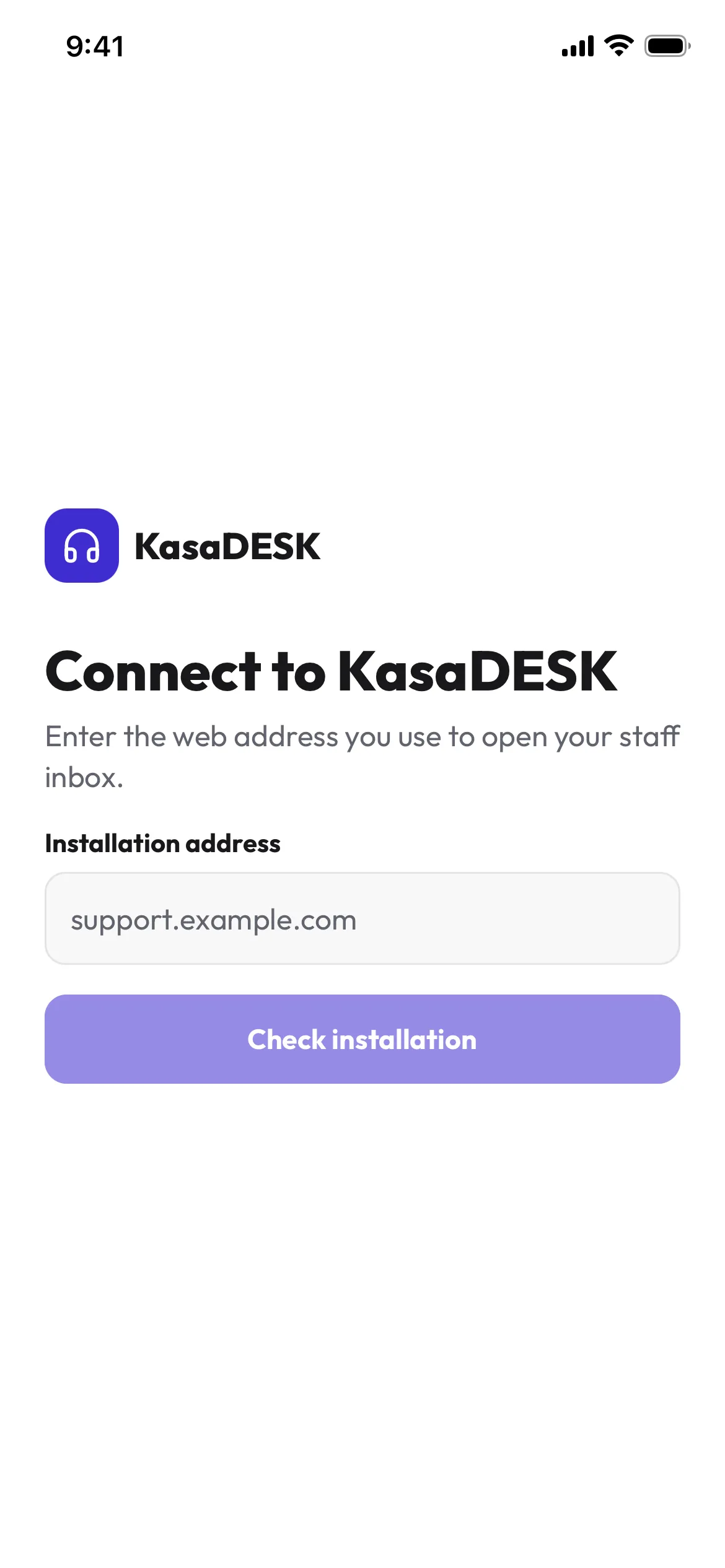
- Install the KasaDESK staff app from the store link your administrator shares, once it is available.
- Enter the Installation address you were given and choose Check installation.
- Confirm the organization name shown is your employer’s. If it is not, stop and ask your administrator.
- Sign in with your existing staff email and password, then enter your authenticator code when required.
- Your authorized queues appear. You see the same conversations as in the web inbox, and no others.
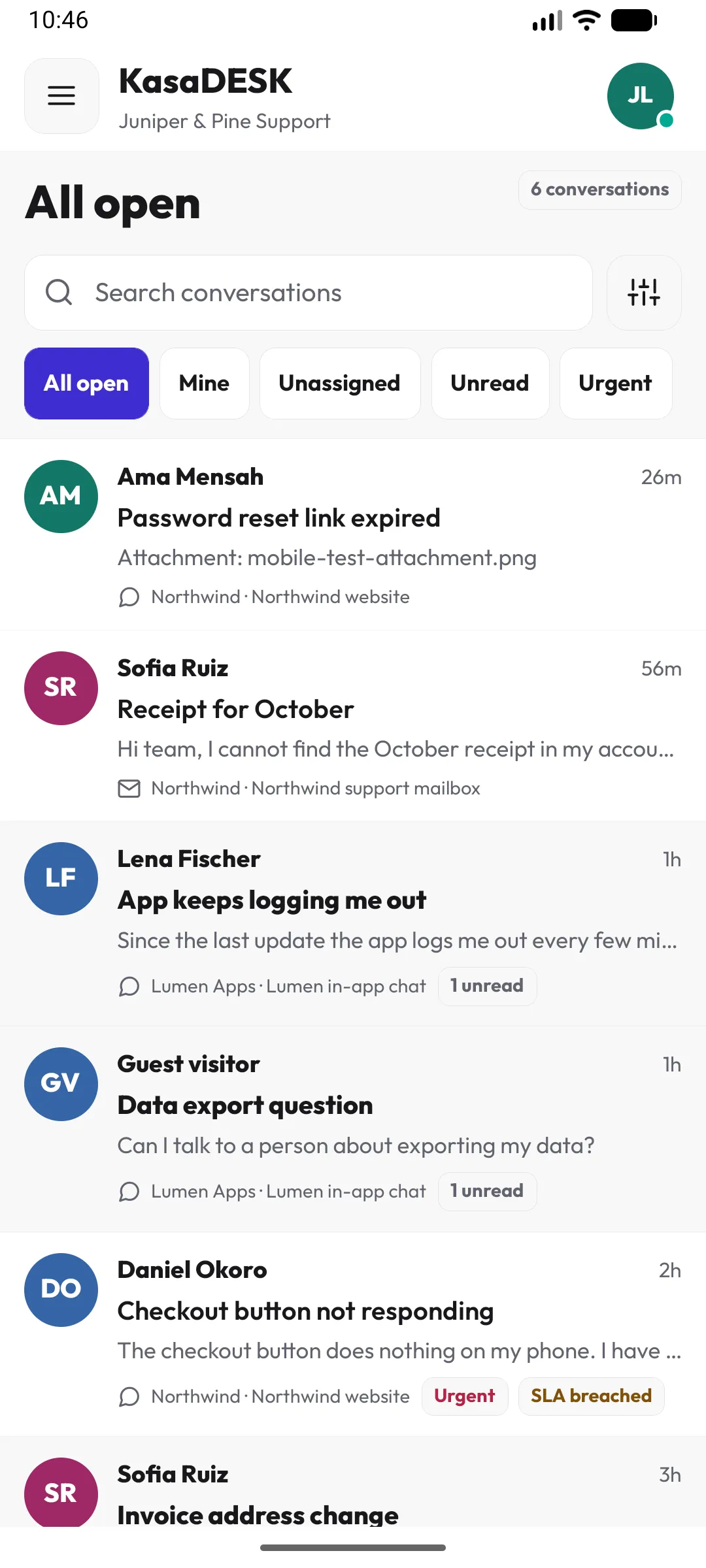
The app follows the web composer: separate Reply and Note, AI drafting and typed-reply cleanup where the workspace allows it, saved replies, Knowledge search, dictation and attachments. Generated or transcribed text is inserted for review, and Send is always a separate tap. Images open in the app. Other files go to the phone’s file actions. Drafts stay on the device for the open thread.
Sessions and sign-outLink to this section
- The app stores only a revocable session, bound to the verified installation address and installation identity, in the device’s secure storage. It does not store your password.
- To revoke a lost phone’s access, sign in on the web and use Account → Active sessions → Sign out other sessions.
- Disabling a staff account or changing its role ends its sessions everywhere.
Foreground alertsLink to this section
In the app’s Profile, Inbox alerts and Inbox sound use the same account preferences as the web console. While the app is open, an eligible new customer message shows an in-app alert. Tap it to open the conversation.
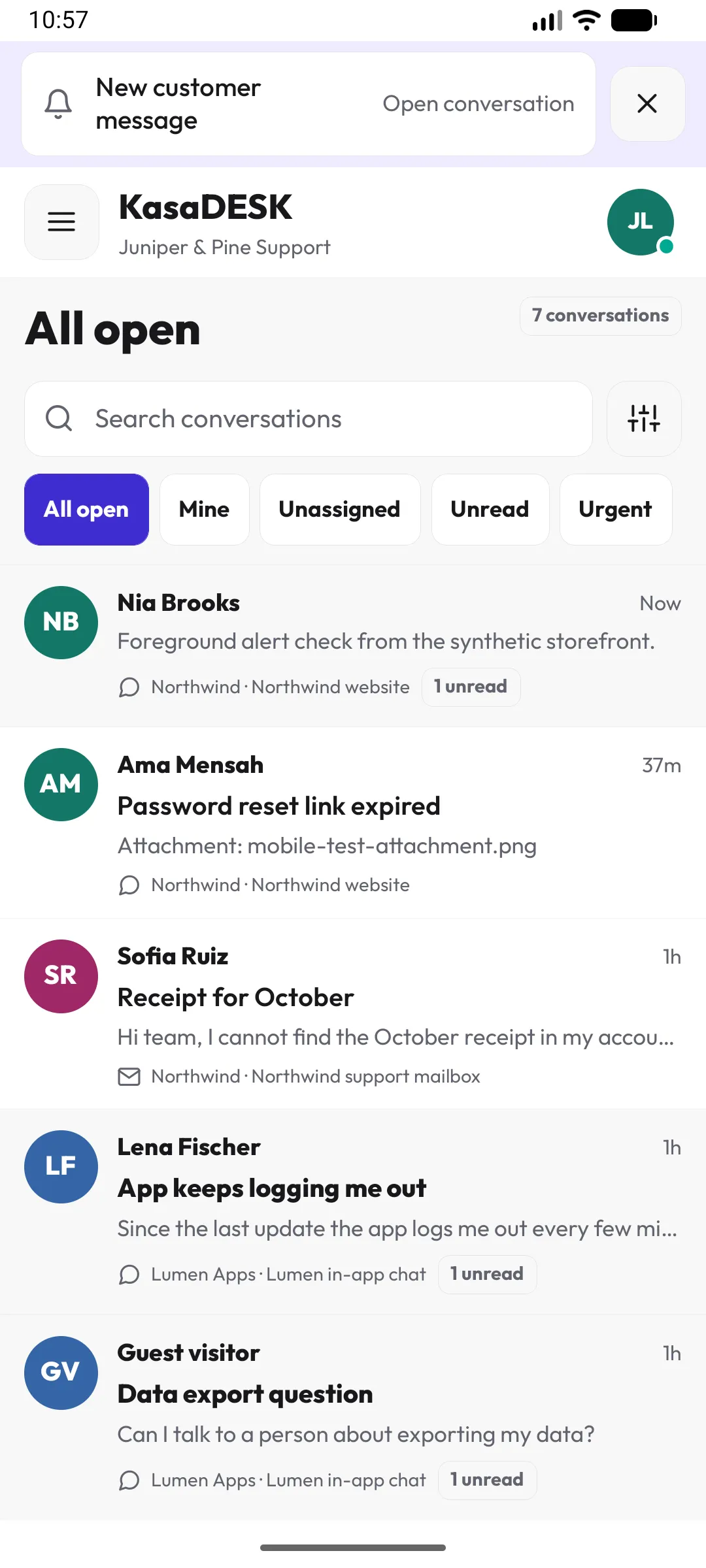
Sound uses the phone’s notification permission and notification channel settings. Alerts while the app is closed, and lock-screen notifications, are not part of the basic path. See Boundaries.
Hand off between web and phoneLink to this section
- From the web inbox, open a conversation and choose Continue on phone next to Availability in your profile.
- From the phone, use Switch to web, or start a handoff from the conversation’s actions.
On the receiving device, sign in to the same installation with the same account and accept the pending handoff within five minutes. KasaDESK checks your access to the conversation again when you accept. Presence and any call in progress stay where they are. The handoff link never carries credentials or conversation content.
BoundariesLink to this section
The staff inbox is separate from phone calling, ringing and background delivery.
| Capability | Verification and availability |
|---|---|
| Connect, sign in with MFA, read and answer authorized conversations | Android emulator checks used a synthetic installation. The iPhone simulator showed the connection screen. The shared store app remains planned. |
| Foreground in-app alerts | Verified in a development preview on an Android emulator. |
| System notification sound | Requires a native build. Not yet verified on devices. |
| Background push notifications and lock-screen alerts | Require a publisher-operated delivery service and device registration. Not available in this release. |
| Native calls | The implemented paths are Twilio outbound dialing and foreground WhatsApp answering on configured channels. Preview controls were simulated. Physical-device audio, incoming native Twilio and locked-screen ringing still require acceptance tests. |
| Store availability | Not yet confirmed. |
The inbox uses Wi-Fi or mobile data. Connecting and signing in do not require a SIM, a personal number, or a configured voice channel. Staff availability is an account setting. It does not register a device for incoming provider calls. Voice uses the organization’s configured channel and device transport, separately from the inbox. The handoff above transfers conversation access, while any active call stays on its original device.
The KasaDESK publisher handles store review, app signing, and the shared iOS and Android push credentials. Buyers administer their own installation and channels. A future background-delivery service needs installation registration and distinct acceptance tests for message push and incoming calls. These functions are separate from the shared app’s installation lookup and sign-in.
TroubleshootLink to this section
| Symptom | Check |
|---|---|
| Check installation fails | The address must be the HTTPS origin staff use for the web console, with a valid certificate and no redirect to another host. |
| Organization name is wrong | The address points at another installation. Do not sign in. |
| Sign-in fails but web sign-in works | The installation is missing the staff app migration, or the proxy does not forward the HTTPS scheme. |
| Conversations missing | The app shows the same scope as the web inbox. Check workgroup memberships. |
| No alerts | Inbox alerts is off in Profile, the app is not in the foreground, or notification permission is denied. |
| Handoff not offered | Both devices must be signed in to the same installation with the same account, and the handoff must be accepted within five minutes. |